Virvell × Ashby Integration
Setup, sending assessments, and viewing results.
Virvell adds three AI-powered screening services to Ashby — pre-screen interviews, voice reference checks, and background verification — that you can trigger directly from a candidate's profile. Results write back to Ashby as structured assessment data. No copy-paste, no switching tools.
Before you start
- An active Virvell account. If you don't have one yet, sign up at virvell.ai or contact [email protected].
- Admin access to your Ashby workspace (you'll need to create an API key).
- Estimated setup time: under 5 minutes.
Setting up the integration
-
1
Sign in to Ashby and navigate to Admin → API Keys
In the left sidebar, expand Integrations and click API Keys. You'll see a list of your existing API keys.
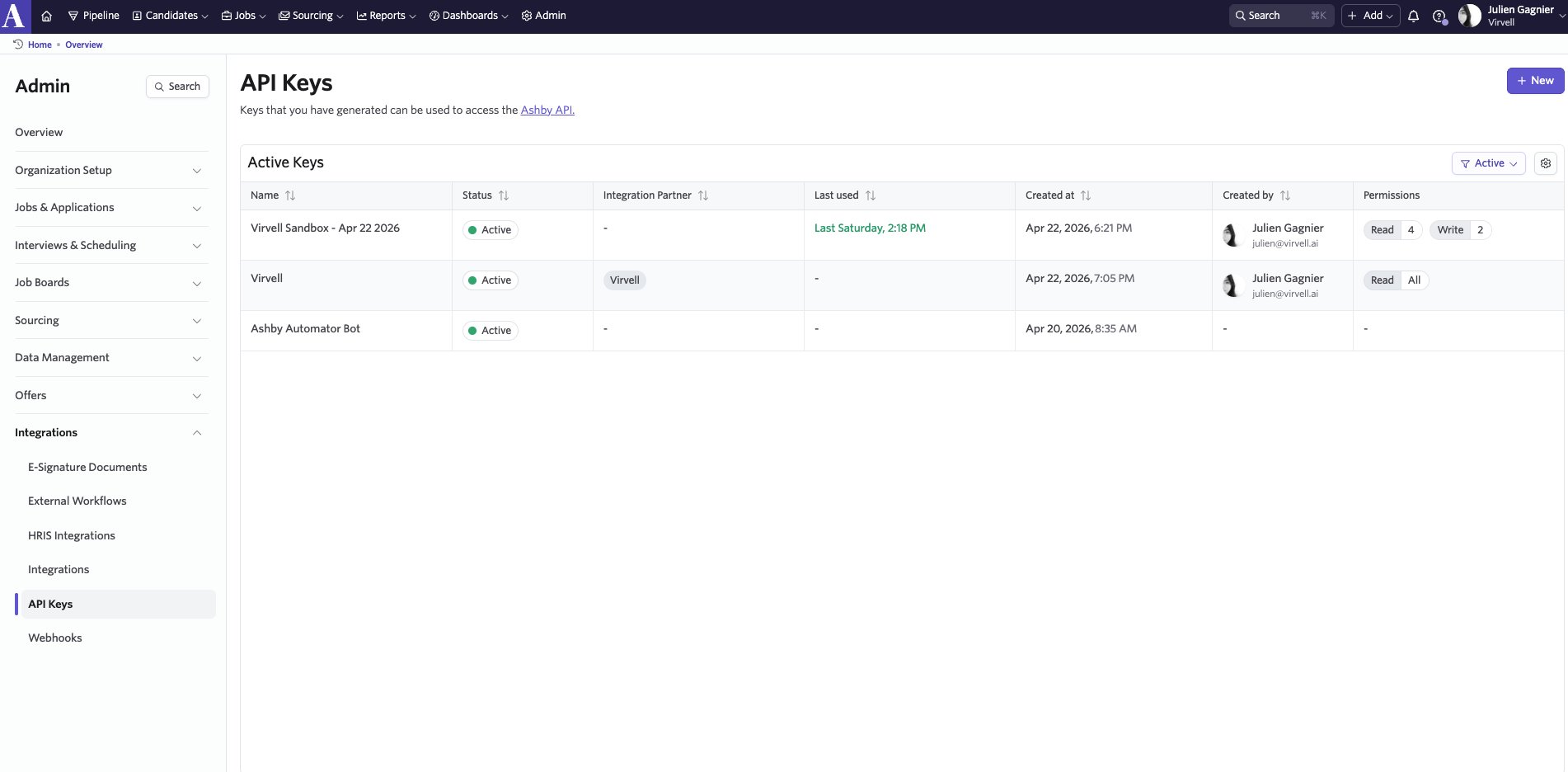
The API Keys page in Ashby admin.
-
2
Click + New to create a new API key
Click the + New button in the top right. In the dialog, enter a name for the key (e.g.,
Virvell). Under Integration Partner, select Virvell from the dropdown if available, or leave it blank.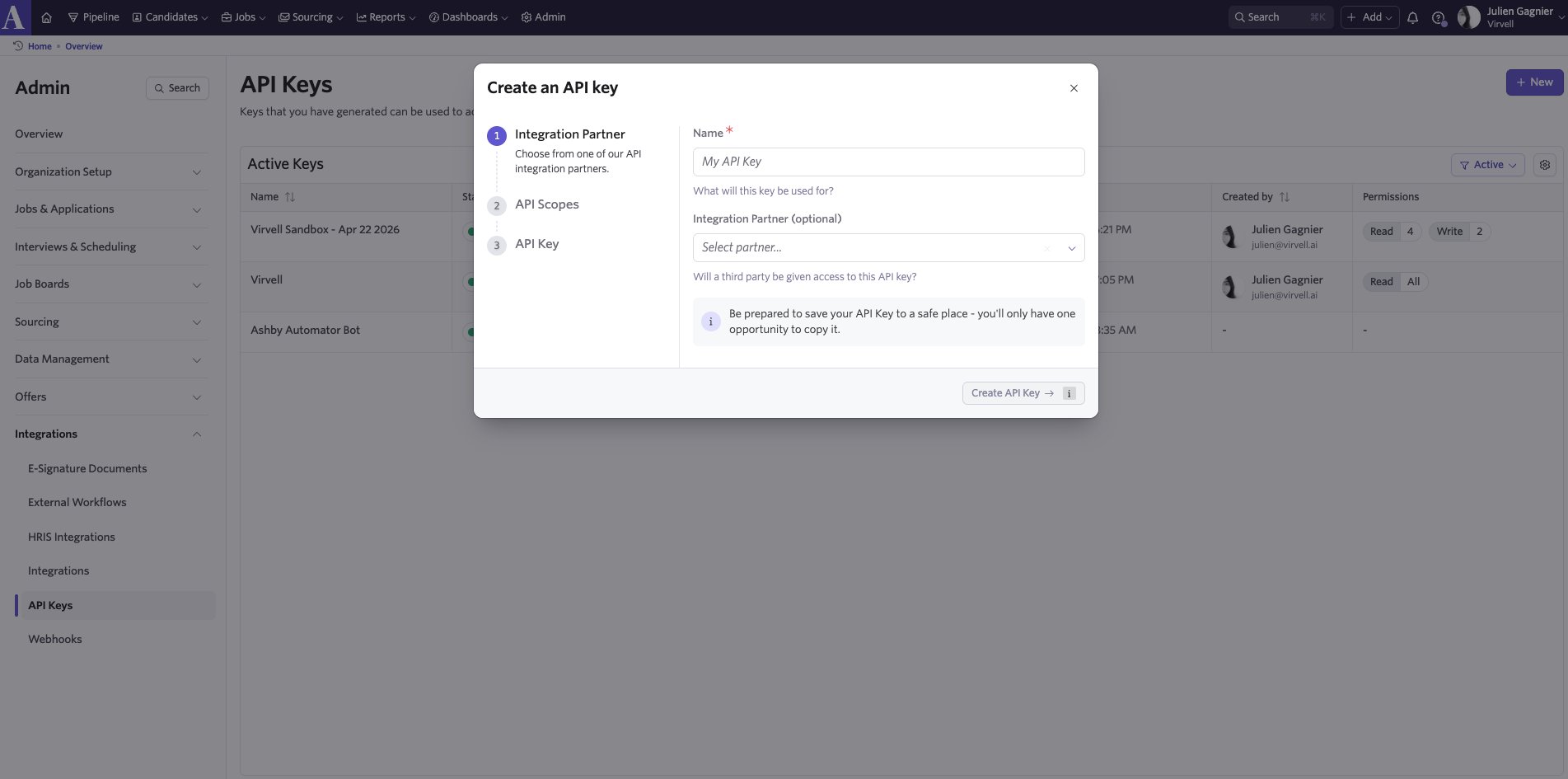
The Create API Key dialog.
-
3
Set permissions
Grant the key these permissions: Candidates — Read and Write. Scroll down or check the permissions panel to confirm both Read and Write are enabled for Candidates. Applications — Read is also needed. Click Save when done.
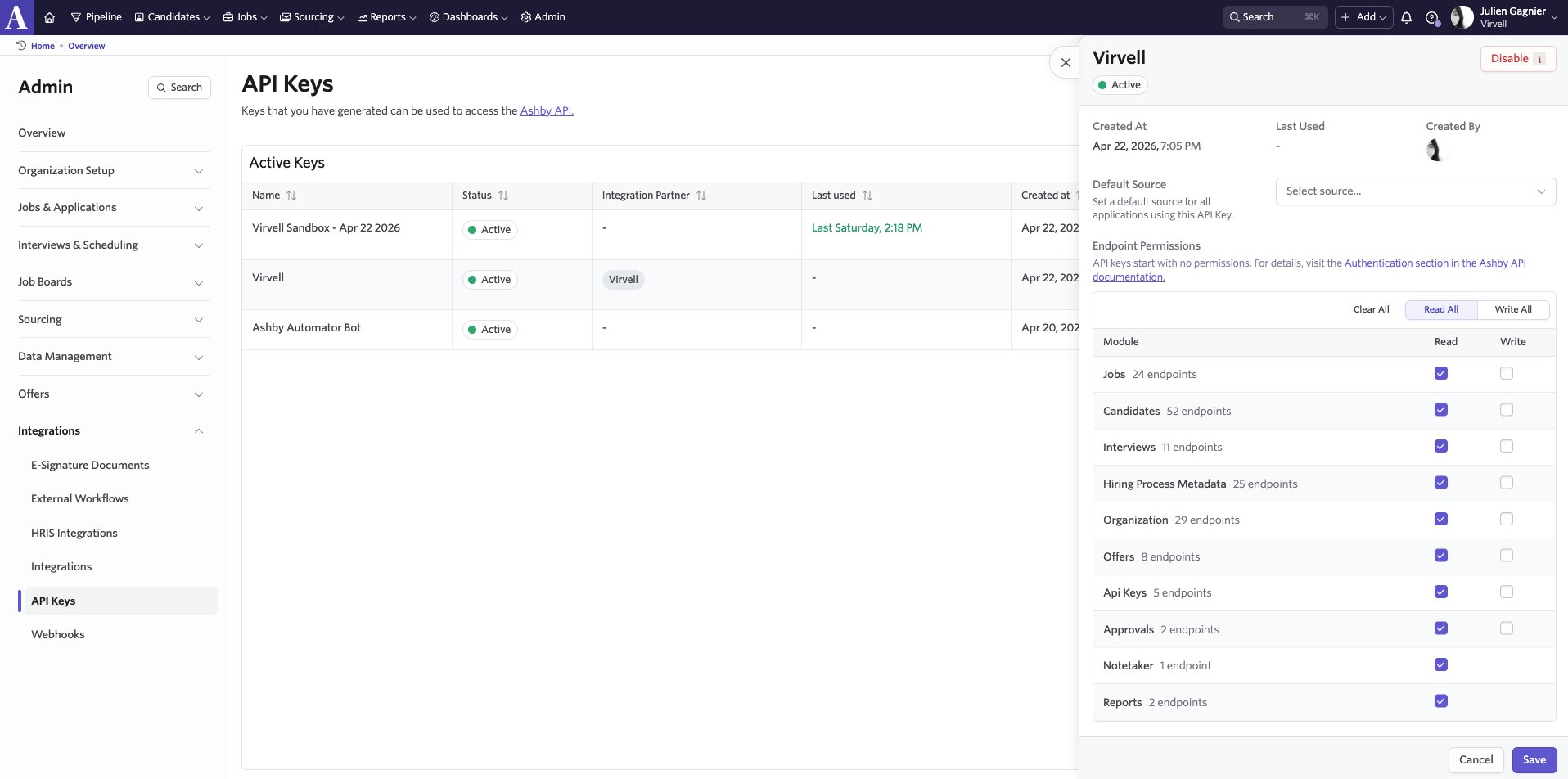
API key permissions. Enable Candidates Read + Write.
-
4
Copy the API key
Ashby will show the key once. Copy it immediately — you won't be able to see it again.
-
5
Paste the key into Virvell
Sign in to Virvell at virvell.ai/login. Go to Settings in the left sidebar. Under the Ashby ATS section, paste the API key and click Save. You should see the connection status change to Connected, with three assessment types listed: Virvell Pre-Screen, Virvell Reference Check, and Virvell Background Check.
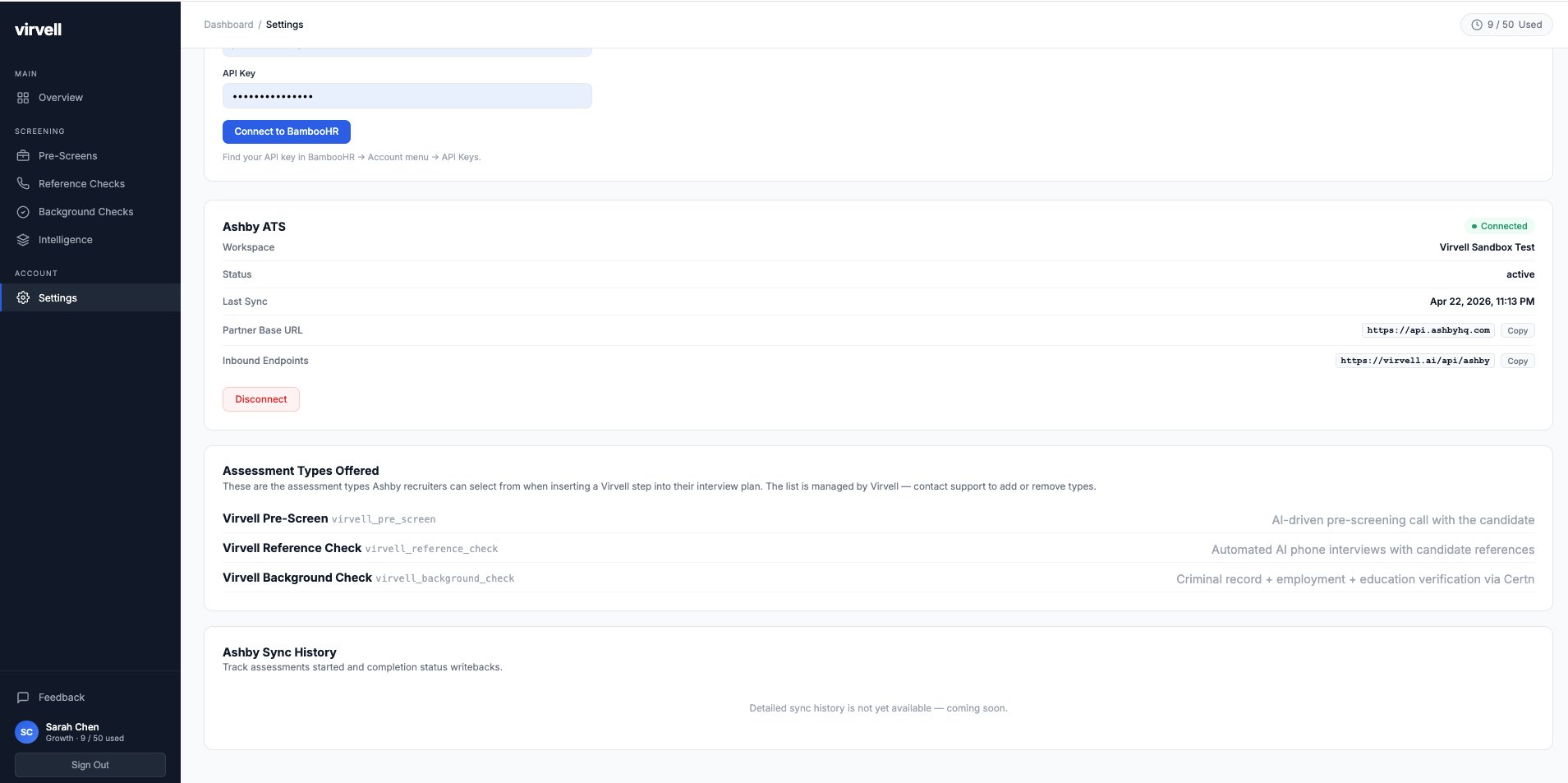
Virvell Settings showing the Ashby connection active with all three assessment types.
Sending an assessment to a candidate
-
1
Open a candidate's profile in Ashby
Navigate to the candidate you want to screen. You'll see their Activities & Progress tab.
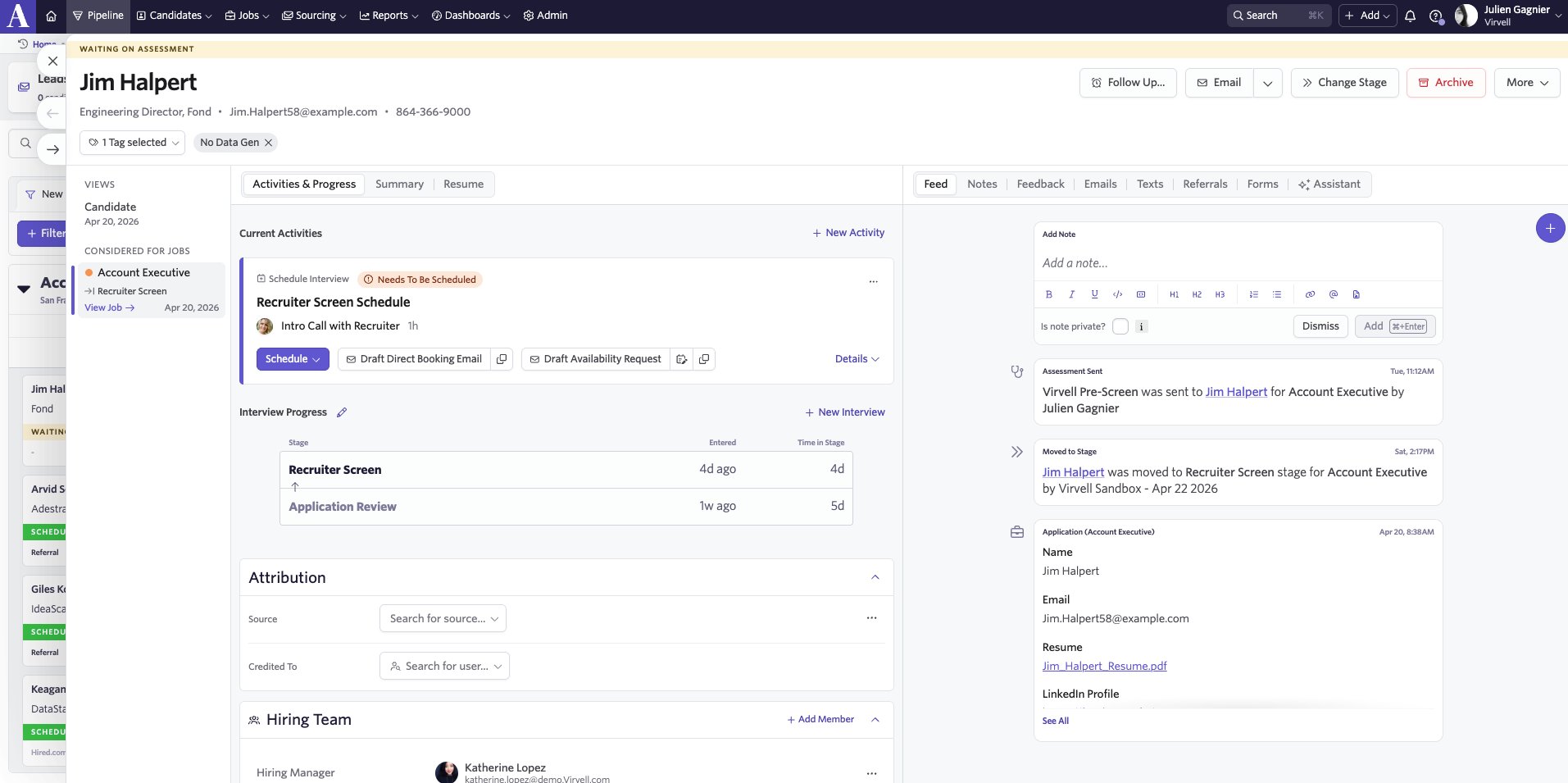
A candidate profile in Ashby.
-
2
Click + New Activity
In the Current Activities section, click + New Activity. Select Assessment from the dropdown.
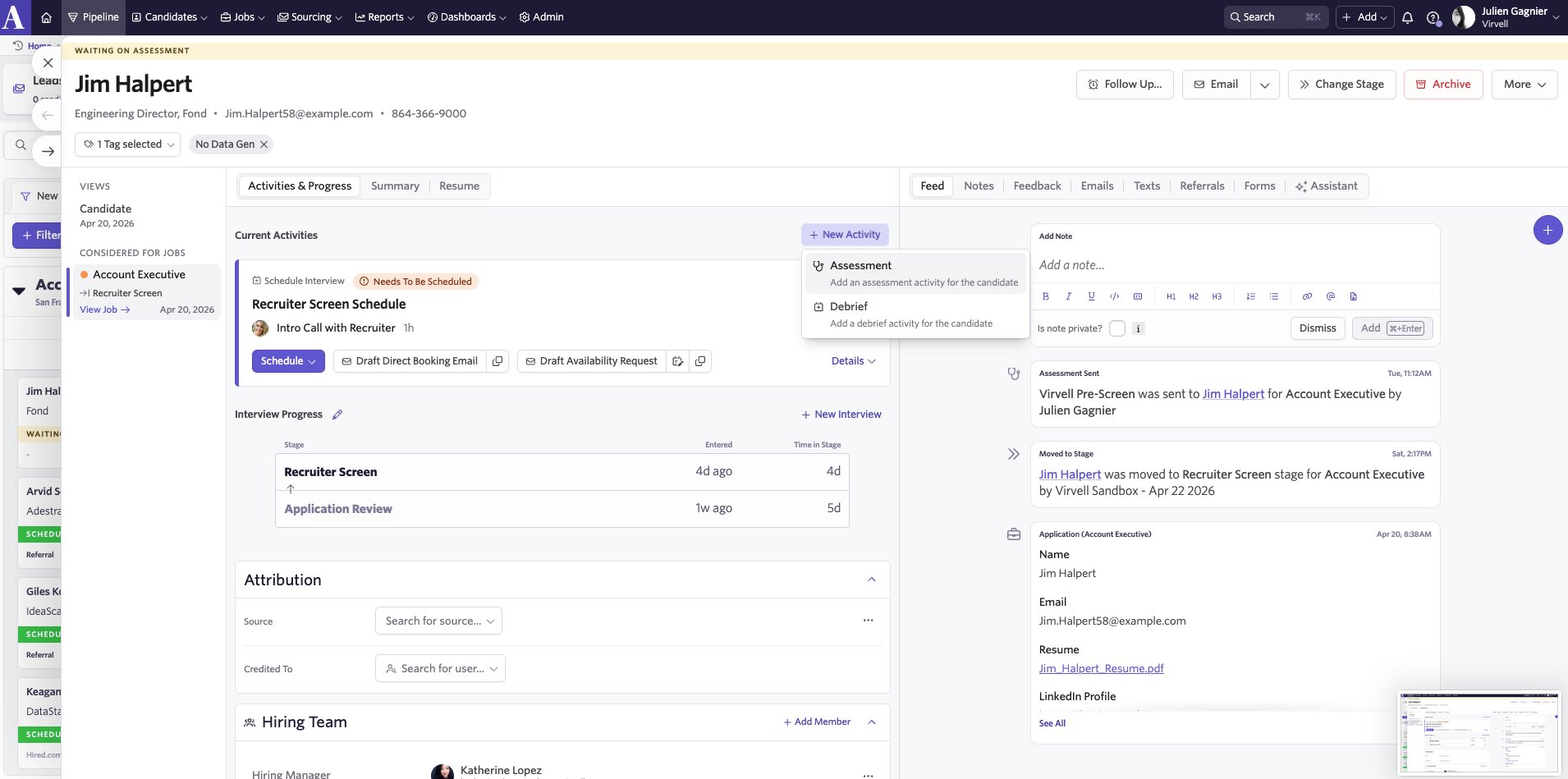
The New Activity menu showing the Assessment option.
-
3
Select a Virvell assessment and start it
Choose the Virvell assessment type you want — Pre-Screen, Reference Check, or Background Check. Click Add Activity, then click Start Assessment. The assessment card will show in the candidate's activity timeline with status "Request Sent."
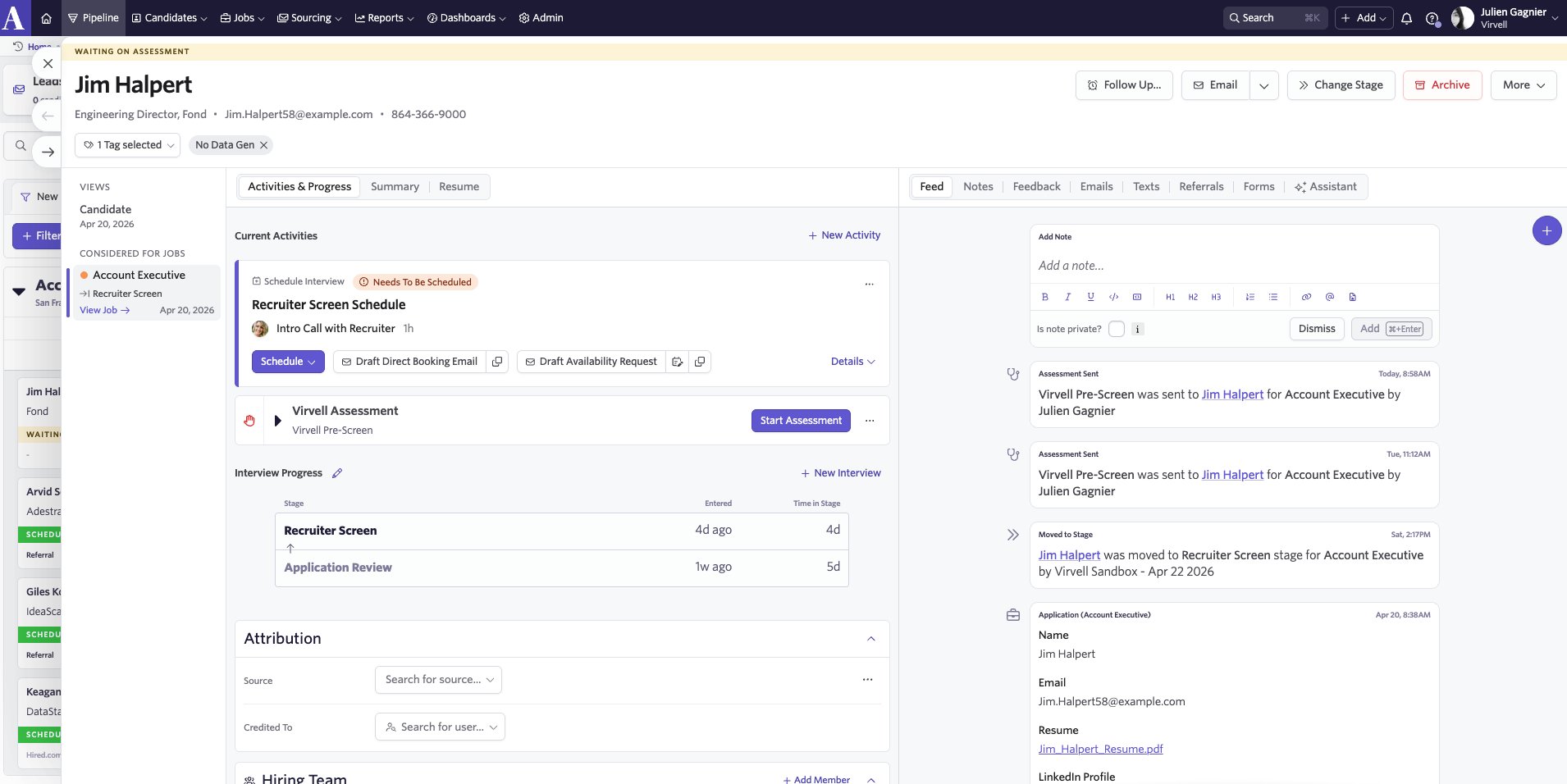
The Virvell Pre-Screen assessment card with Start Assessment button.
Viewing results in Ashby
When the assessment completes, the activity status updates automatically in Ashby. Click the assessment card to expand it and view the result summary. Click the View Report link to open the full Virvell report in a new tab.
Each assessment type produces a different report:
- Pre-Screen: conversation summary, structured answers, and a structured findings summary.
- Reference Check: intelligence findings across all references, with a full structured report.
- Background Check: criminal history, employment verification, and identity verification status.
Canceling an assessment
To cancel an in-progress assessment, click the three-dot menu (…) on the assessment activity card and select Cancel Assessment. The status will update to Cancelled in both Ashby and Virvell. Cancelled assessments do not consume credits.
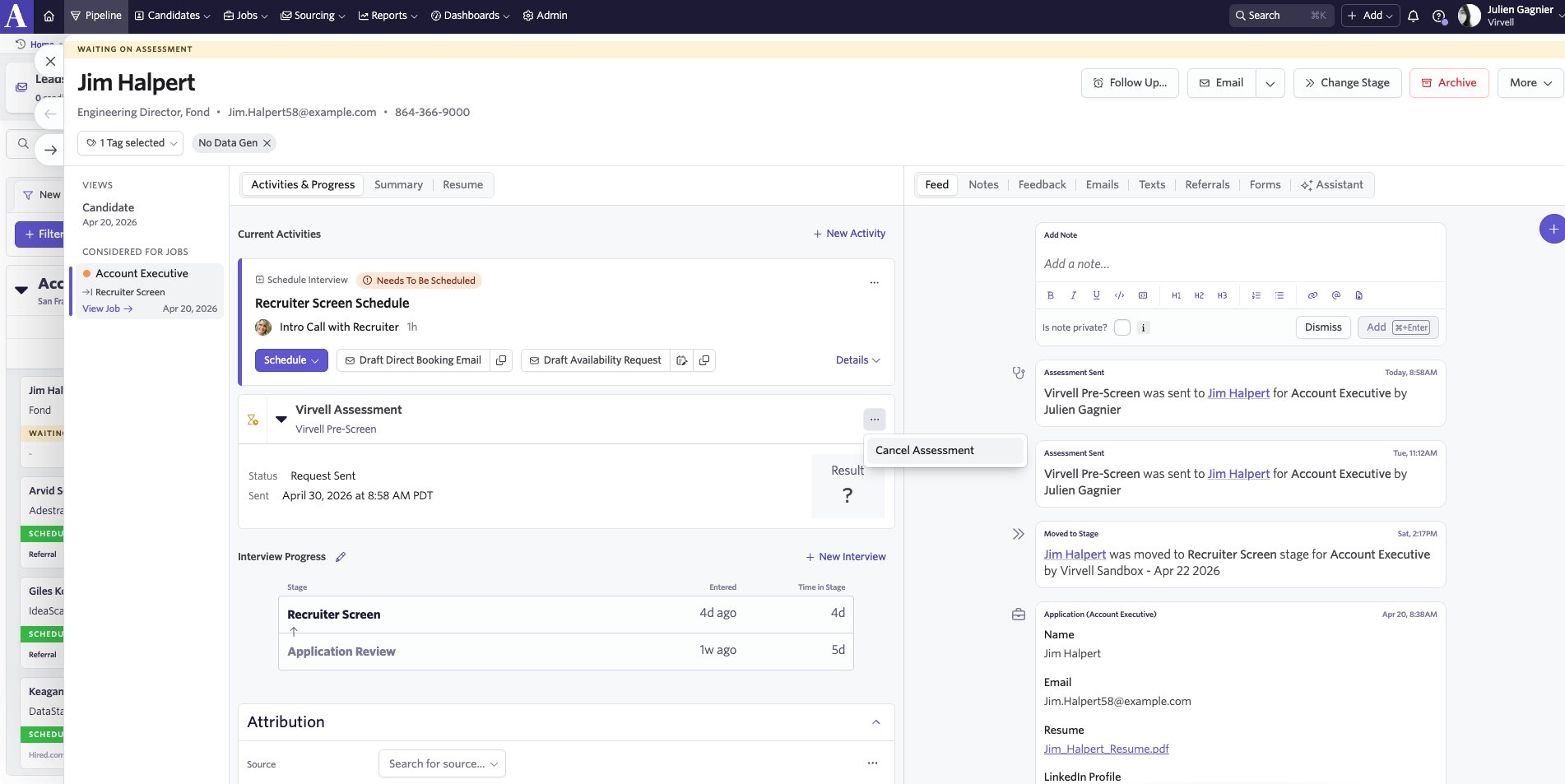
An in-progress assessment showing the Cancel Assessment option.
What each assessment does
Virvell Pre-Screen
An AI voice screening interview tailored to the role. The candidate receives a call from Virvell's voice AI, which asks screening questions configured for the position. Typical turnaround: same day. The report is available within minutes of the candidate completing the call.
Virvell Reference Check
Voice AI reference outreach. Virvell calls each reference the candidate provides, conducts a structured conversation, and produces an intelligence report with findings across all references. Typical turnaround: 2–4 business days, depending on reference responsiveness.
Virvell Background Check
Criminal record checks, employment verification, and identity verification powered by Certn. Typical turnaround: 1–3 business days depending on jurisdiction. Background checks have additional Certn provider costs separate from your Virvell plan credits.
Troubleshooting
I don't see Virvell assessments in the "Add Activity" menu.
Verify your API key has Candidates (Read and Write) and Applications (Read) permissions in Ashby. Re-save the key in Virvell Settings if needed.
My assessment is stuck in "Request Sent" status.
For pre-screens, verify the candidate has a valid phone number in E.164 format (e.g., +14165551234). For reference checks, verify each reference's phone number is in the same format. Contact [email protected] if the assessment doesn't progress within 24 hours.
How do I update or rotate the API key?
In Virvell, go to Settings → Ashby and update the API key field with the new key, then click Save. The connection will use the new key immediately.
Can I disconnect the integration?
Yes. In Virvell Settings, click Disconnect under the Ashby section. Virvell assessments will no longer appear in Ashby. Existing results remain in both systems.
How are screenings billed?
Each Virvell assessment uses one credit from your plan. Background checks have additional Certn provider costs billed separately. See virvell.ai/pricing for details.
Need help?
Email us at [email protected] — we typically respond within a few hours on business days.
Check platform status: stats.uptimerobot.com/5bri4fMkbR